Reports
The workload week
A technician a row and a day a column: reading a week at a glance, which day a job sits on, and the row worth looking at first.
Last updated 12 August 2026.
What the workload week is for
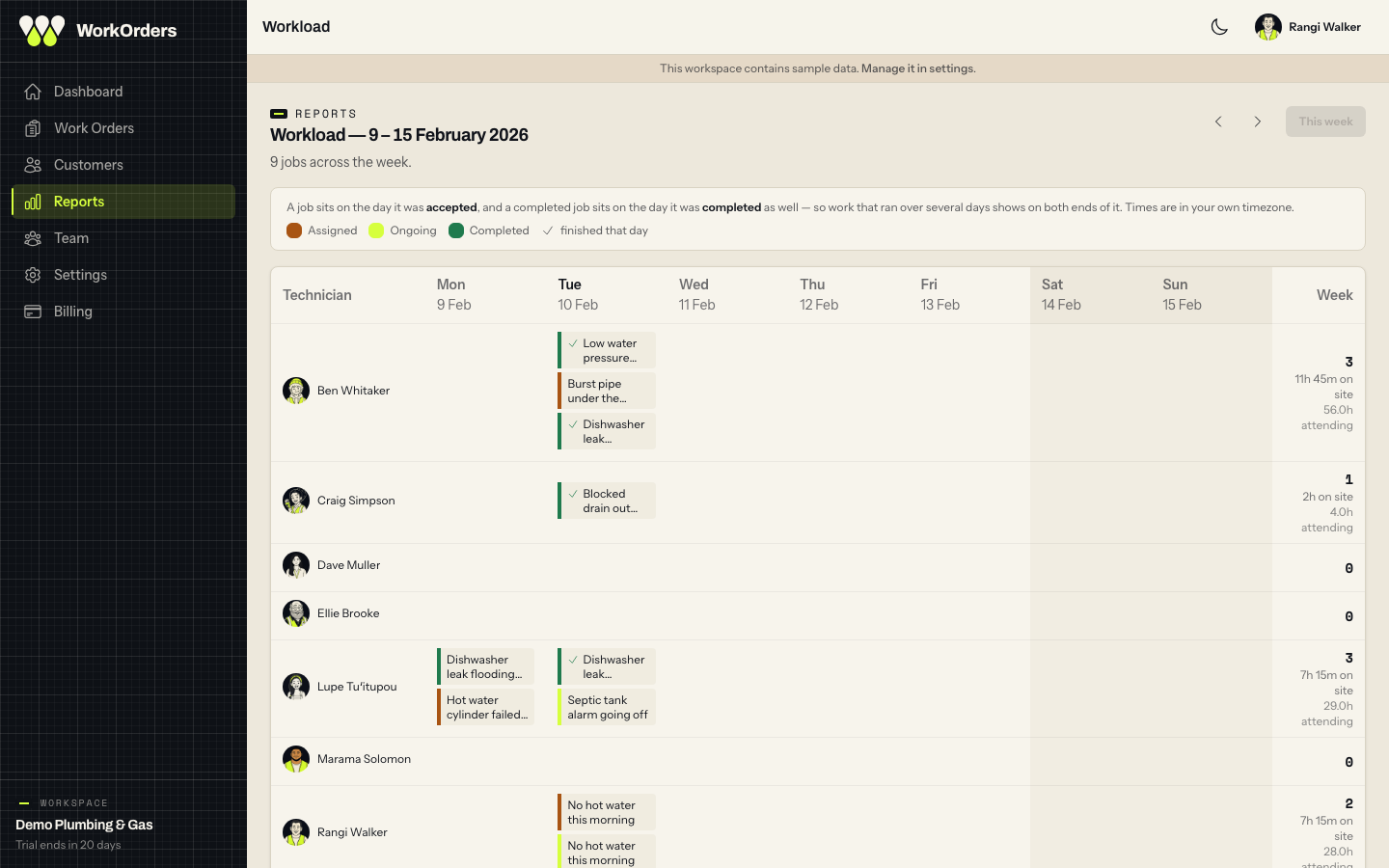
One week, a technician a row, a day a column. It answers the question a filtered list answers badly: who had a full Tuesday and who had none. Reach it from Workload calendar at the top of Reports. Like the rest of the Reports section it is owners and administrators only.
It has no filters, nothing to save and nothing to download. If you want a list you can narrow, name and export, that is reports and saved views.
Which day a job sits on
This is the one rule you need, and the screen states it in a panel above the grid rather than leaving you to work it out: a job sits on the day it was accepted, and a completed job sits on the day it was completed as well.
So a job accepted on Monday and finished on Wednesday appears twice — once on each. That is not double-counting; it is the honest picture, because the technician had that job on both days. The week's totals down the right count each job once however many blocks it drew, so a person who took four jobs and finished three of them reads as four, not seven.
A job nobody has accepted yet has no day to sit on, so it appears nowhere on the grid. That is what the Unassigned row is for.
Days are your own days. A Monday morning here is a Monday morning where you are, not wherever the server happens to think midnight was.
Reading a row
Every active technician gets a row whether or not they worked, because an empty row is half the point of the screen — a gap you cannot see is a gap nobody fills. Anyone else who took work that week gets one too, which is how an administrator who picked up a job, or somebody deactivated on the Wednesday, still appears.
Unassigned is always the last row and always there. It is usually the row worth looking at first.
Each block in a cell is one job, showing its subject and a coloured edge for its status, with a tick where it was finished that day. Hover it — or tab onto it — and everything the block had no room for appears: the reference, the status and urgency, the customer, the hours attending and the time on site. Clicking it goes to the job.
The Week column
Down the right is what the week came to for that person: the number of distinct jobs, then — only where there is one to show — the time recorded on site and the hours attending they quoted. Along the bottom, Jobs that day counts distinct jobs across the whole crew for each day, so a job two rows both touched is one job.
Neither figure is a count of hours worked. Hours attending is what somebody said when they took the job on; time on site is what was recorded when they finished it, on the jobs that carry it at all. See how long the job took before either number goes anywhere near a pay conversation.
Moving between weeks
The two arrows step a week back and forward, and This week returns — it is greyed out when you are already there. Step off this week and the one you are looking at goes into the address bar as a plain date, so "the week the roof job went wrong" is a link you can send to somebody. Today's column is marked, and the weekend is shaded.
On a narrow screen
Below a wide desktop the grid becomes a stacked list: a card per day, each naming the people who had work on it and what they had, with each day's job count in the corner and Nothing on the books. where there was none. The per-person totals for the week sit once at the foot rather than repeating inside each day. It is the same data, not a summary of it — seven columns and a row label cannot both be on a phone screen at a size anybody can read.
Why a job you marked ongoing is not on the day you did it
Only two dates put a job on this grid: when it was accepted, and when it was completed. Marking a job ongoing is neither, so it moves the job's colour but not its position. A long job shows on the day it was taken and again on the day it was closed, and the days in between are quiet on the grid even though somebody was working. If you want to see that middle, the job's own timeline has every step on it — a work order, start to finish.